
|
MS Excel
2000 - Using a formula
|
| .......... |
This
is not a course. It is a...
Tip Sheet
|
|
Labels and values The entering of data into a spreadsheet is just like word
processing, but you have to first click on the cell in which you want the data to be
placed before typing the data.
All words describing the values (numbers)
which you enter are called labels. The numbers which you enter, and which can later be
used in formula's, are called values.
Notice also that the labels are all left justified
and the values are all right justified in their cells. |

|
|
Simple Formula:
Place the cursor in the cell in which you want
the answer (result of the formula) to appear, and press Enter once
you have typed the formula
All formula's start with an =
sign
Refer to the cell address instead of the value in the cell e.g. =A2+C2
instead of 45+57
| + means add |
|
e.g. A2+C2 |
|
add the value (number) in A2 to the value (number) in C2 |
| - means subtract |
|
e.g. A2-C2 |
|
subtract the value (number) in C2 from the value (number) in A2 |
| * means multiply |
|
e.g. A2*4 |
|
multiply the value (number) in A2 by 4 |
| / means divide |
|
e.g. A2/3 |
|
divide the value (number) in A2 by 3 |
Use BODMAS i.e. Brackets first, then Division,
Multiplication, Addition and Subtraction
e.g. =((A2-B2)*3)-100
Notice that individual sums within a sum are bracketed and
appear at the beginning of the formula. |
|
Range Formulae
These formula's are used for working with long lists of
numbers. A typical range formula looks like this:
=SUM(A3:A30)
SUM is a function, meaning that it sums (adds up) the
list of numbers
The list of numbers is indicated in brackets.
The address of the first cell in the list is A3.
A colon : separates this cell
address from the last cell in the list, which is A30
|
|
=SUM(D3.D9)
Adds list of values from cell D3 to cell D9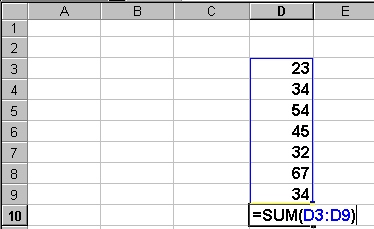
|
|
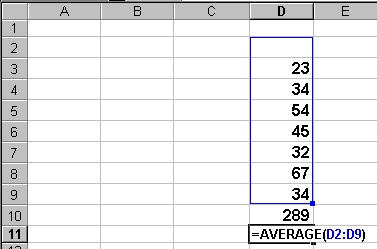
=AVERAGE(D3:D9)
Averages the values from cell D3 to cell D9
|
|
Other range functions:
There are many formula functions that you could explore with
time. As an educator you could you are most likely to use SUM and AVERAGE. Here are just a
few more:
| SUM |
adds the numbers in the list |
| AVERAGE |
averages the numbers in the list |
| PRODUCT |
multiplies the numbers in the list |
| MAX |
identifies the highest number in the list |
| MIN |
identifies the lowest number in the list |
| COUNT |
counts the number of numerical
items in the list |
| COUNTA |
counts the number of
alphabetical items in the list |
| COUNTIF |
counts the number of items
that satisfy certain criteria
e.g. =COUNTIF(A4:A20,">50") counts the number of
values that are higher than 50 in the list from A4 to A20 - notice the
use of the comma and quotation marks to separate the list (A4:A20)
from the criteria (>50). |
|
|
Notice
that you must have selected an empty cell before typing the formula. The answer will then
appear in that cell. |
|
Absolute values in a formula
When you copy a formula like =B5/B2 from
Row 5 to Row 6, the values of the rows (5 and 2) in the
formula change automatically, so that it would then be =B6/B3
Similarly if you copy =B5/B2 from Column B
to Column C, the values of the column (B) in the formula
change to C5/C2
If you want to prevent this column or row change from
happening, you should place a $ sign in front of the row or columns
indicator.
e.g. If you want B2 to remain unchanged, the
formula should be written as =B5/$B$2
i.e. neither B nor 2 must change as the
formula is copied. |