|
MS Excel 97 - Columns, rows and cellsCell addresses |
|
| .......... | This is not a course. It is a... Tip Sheet |
|
| Cell
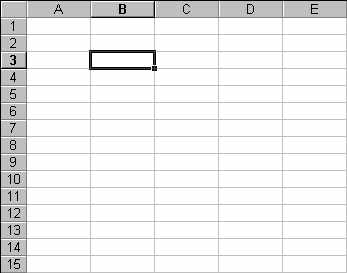
address Each block on the workbook page is called a cell. Each cell is identified by its address. The cell address describes the column and row of the cell. In the example below, A1 is the cell in Column A and Row 1. The cell address is shown to the left of the input line (circled).
In the example below, the cell address is B3. It is in Column B and Row 3.
|
||
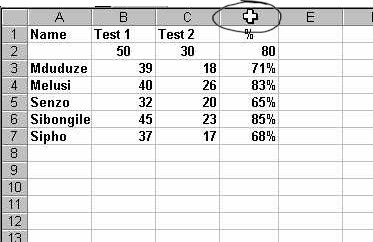
| To select an entire column or row: Place the mouse pointer in the column (or row)
indicator - see the example circled below.
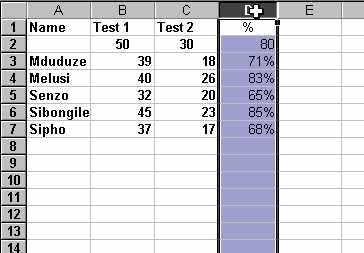
The whole column is selected:
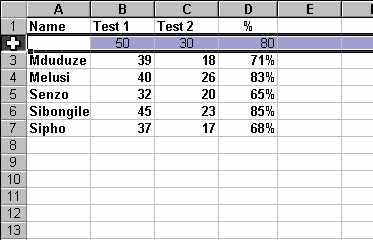
Similarly, you could select a whole row (row 2 below).
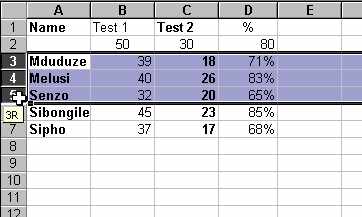
Note: you could click and drag the mouse in the selector column (or row) to select a range of consecutive (next to each other) columns or rows (see below).
|
||
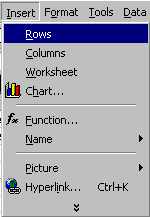
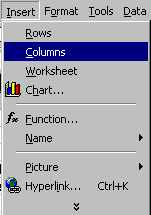
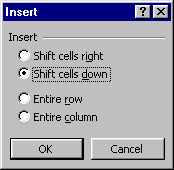
| Inserting and deleting columns and rows: Click on Insert New rows will insert above the position of the selected cell(s). New columns will insert to the left of the selected cell(s). |
  |
|
| To have more options on how to insert or delete columns or rows, you should click in the right mouse button. A pop-up menu appears on the page. |
  |
|
|
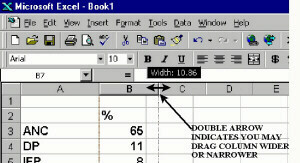
Move your mouse into the grey column indicator area and you will see the double arrow - click and drag left or right to increase / decrease column width (see image below).
|
||