|
MS Front Page Express - Page formatting |
||||
| .......... | This is not a course. It is a... Tip Sheet |
||||
|
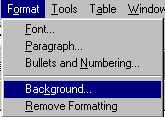
Background Colour Click on the Format menu Click on Background
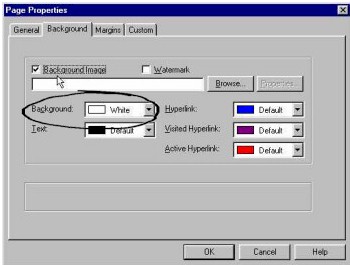
Click on Background (shown below)
Background Image A background image may seem like a good idea, but rarely is. If you choose a texture or pattern, it should not be too bold or overpowering. Photographs are not recommended since text will invariably fade into the multi-coloured backgrounds. If you do wish to use a background, you should alter its contrast in a graphics programme, so that it appears in muted, pastel tones. Click on the Format menu Click on Background
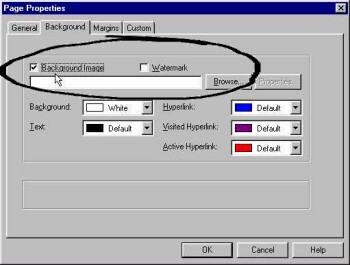
Click on Background Image (shown below)
Browse to the image by clicking on Browse and selecting it. The image should be somewhere in the same folder as the web pages. If you select Watermark the image remains static while the text scrolls. Text and Link Colours You can choose your own colour scheme of text and links. The normal colours are black for text and blue for links. Click on the Format menu Click on Background
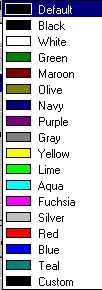
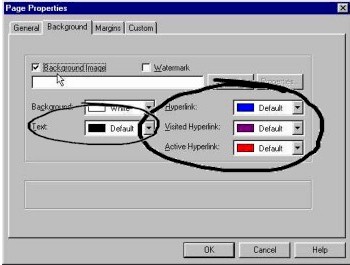
Click on Text (shown left below)
For the Link colours follow the same procedure but clicking on Hyperlink, Visited Hyperlink and Active Hyperlink. Visited Hyperlink refers to
links that you have clicked on previously. |