|
MS Front Page Express - Insert Image |
|||||||||||||
| .......... | This is not a course. It is a... Tip Sheet
|
|||||||||||||
| Insert
Image
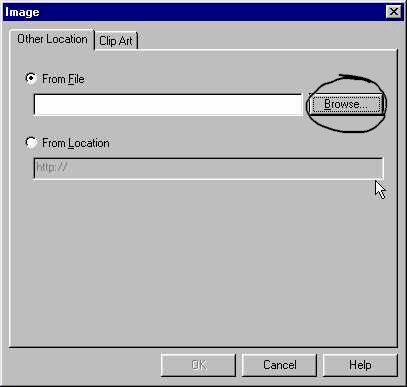
Click on the Insert Image icon as shown in the toolbar above.
You can insert images of the gif or jpg format into your web page. Keep in mind that you need to keep your images relatively small in size, otherwise, your pages will take a long time to download. See the tip sheets on Paintshop Pro for help on this. Size - use a graphics programme to re-size images. Alignment
When you insert an image in text, the image appears where the cursor is when you click the Insert Image icon. When you either right or left align an image in a line of text, the image defaults to 'top align' in the line you inserted the image. However, you cannot centre the image in a line of text, only left and right will work. You can only have an image on one side of text, not both sides (unless you use a table). If you have an image not in the same line as text, you can horizontally align it left, right, and centre. This can be done by clicking on the image and then on the left, right and centre justify icons. left align centre align right align Images can add colour and excitement to your web page. It is best to use 2 main image types to begin with (as almost all browsers can use them). .jpeg (or .jpg) -best for photos. Can reproduce 24 bit files that can handle in excess of 15 million colours .gif - for other images (such as the sketch in the alignment example above). It is based on 8 bit files that can handle only 256 colours. . gifs can also be animated like this |
||||||||||||||


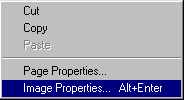
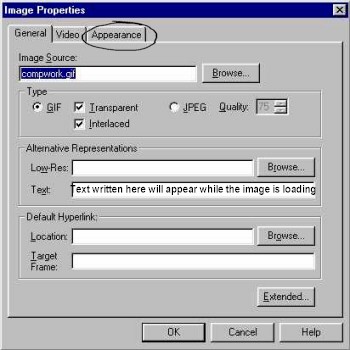
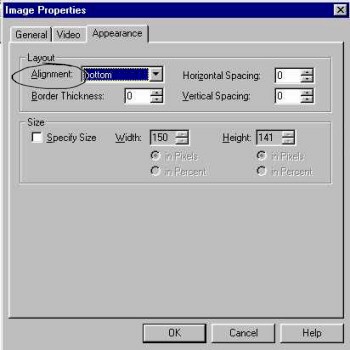
 Bottom aligned