|
MS Front Page Express - Save / Save As File |
| .......... | This is not a course. It is a... Tip Sheet |
| You
should save a file after working with it for just a few
minutes. Then you should keep saving the updated version
of the document as you work (every 5 minutes or so).
To Save a file Click on the Save icon as shown in the toolbar above or Click on the File
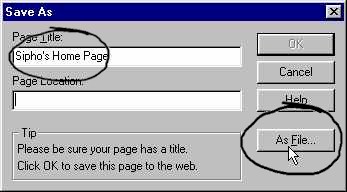
menu The first time you save a file you will be able to give the file a new and unique title name. The Page Title (Sipho's Home Page in this case) is what appears in the blue bar at the top of the screen. All Web documents should have descriptive page titles. This description should include a few keywords describing the content of the page.
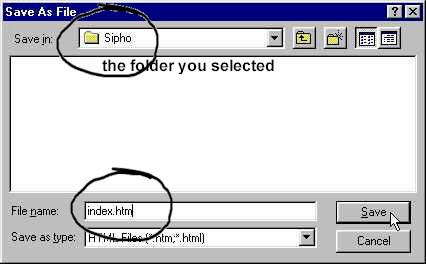
After you have typed in the page title, click on As File. You must show the computer exactly where you want to save the file.
Then type in the name of the file. Just the name will be sufficient (you do not have to type in .htm) You use the Save As command when you want to:
Click on File When you choose to use Save As you will be presented with the same pop-up screen as you would when you use Save (see above). If you want to change the file name, simply write the new name in the File name: box at the bottom of the pop-up screen. If you want to change the place where you save the file, for instance you want to save it
you would have to choose the new location by choosing a different folder. |