| The main text
attributes are available from a range of icons as shown
below. 
Text Style

Click on the Change Style
icon. A pull down list (shown below) will appear.
There are only a few styles
that one commonly uses from this list.
Heading1 is used for the main
heading of the page. It is large and bold.
Heading 3 is normally used for
paragraph sub-headings.As
soon as you press the Enter
key, at the end of the line after a Heading
style has been chosen, the text reverts to normal.
|
 |
Text Font

Click on the Change Font
icon as shown above.
It is advisable to use just one of two
fonts on a web page. Either use Times New Roman or Arial.
These are commonly available on most computers on the
Internet. If you wish to make use of a specific fancy
font in a heading, import that text as a graphic.
Increase / Decrease Text Size

Click on the Increase Text
Size / Decrease Text Size icons as shown
above.
This will increase/decrease the text
size by one size from whatever appears on the screen
currently.
Bold / Italics / Underline

Click on the Bold / Italics
/ Underline icons as shown above.
These features work exactly as they do
in any other Windows programme.
Text
Colour

Click on the Text Colour icon
as shown above.
| A range
of colours are offered to you in a pull down menu
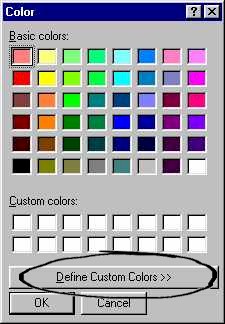
(see image to the right). Click on one of your
choice and then click on OK.
or choose a custom
colour (a colour of your own design)
Defining
Custom Colours
Click on the Define
Custom Colors tab as circled in the
image to the right.
|
 |
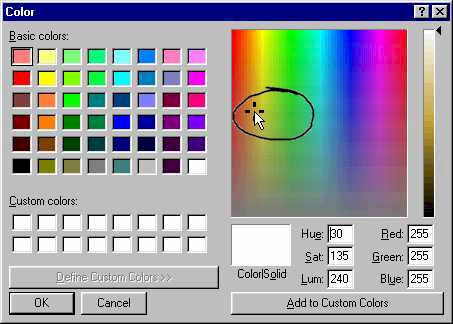
| Select the basic colour of
your choice by clicking in the colour spectrum
area (circled in the image below). You can
click and drag the mouse. A
range of that colour (from black to white) will
be shown in the vertical bar to the right of the
spectrum area.
|
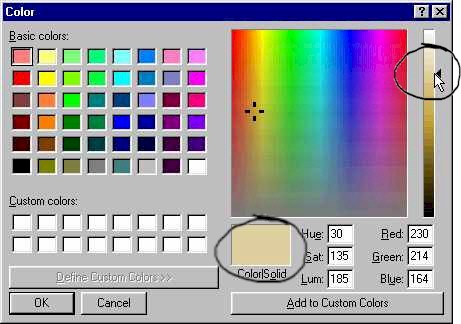
| As you click and drag the
mouse pointer up and down the vertical bar to the
right (as shown below) and the sample colour will be
shown in the block marked Color|Solid
(as shown below)
|
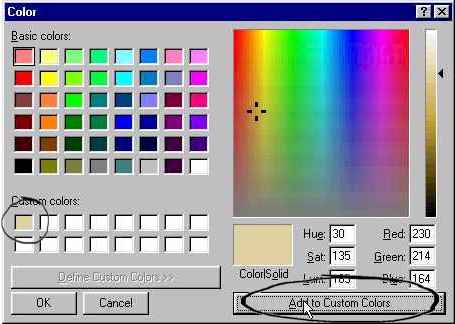
| Once you have finally selected
the colour of your choice, click in the Add
to Custom Colors tab ( as shown below)
and the colour will be place in one of the
squares under Custom colors. Then click on OK. When you want to make
use of that colour sometime later in the same
session, you just need to select it by clicking
on the colour in the Custom colors
square.
Custom colours are lost when
you close the programme. To re-create the custom
colour in another session, make a note of the
values next to Red, Green and Blue and type these
in manually before adding it to custom colours.
|
Text Justify

Click on the appropriate icon as shown
in the toolbar above.
This paragraph is aligned left.
This paragraph is aligned
centre.
This paragraph is aligned
right.
|
