psp7a.gif (4333 bytes)

Paint Shop Pro - Inserting text in image

..........

This is not a course. It is a...

Tip Sheet

Click on  the Text icon psp19.jpg (820 bytes) in the toolbar to the left of the page on the screen.

Then click anywhere on the image on which you want text to appear.

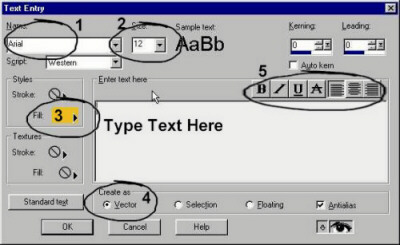
This pop-up screen appears:

You can choose your own Font Name  (see 1 above) and Size (see 2 above)

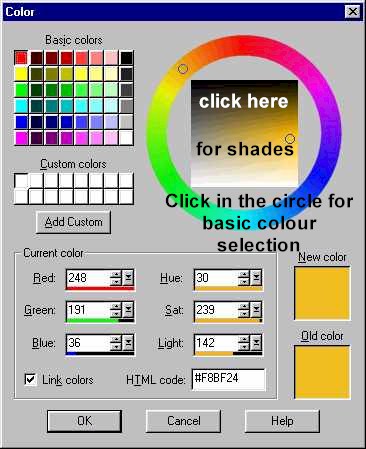
Choose the Font Colour by clicking on the colour block at 3 (see image below for more details)

Make sure Vector is selected (see 4 above).

You can also choose the normal Font Attributes (see 5 above)

psp21.jpg (49789 bytes)
Moving, psp24.jpg (1664 bytes)text

Move the mouse pointer over the text, but towards the left. Click and drag when the 4 arrows appear (as above).

resizing psp22.jpg (2002 bytes)text

Move the mouse pointer over the text, but towards the corners. Click and drag when the 4 diagonal arrows appear (as above).

rotatingpsp23.jpg (1747 bytes) text

Move the mouse pointer over the text, but towards the right. Click an drag when the curved arrows appear (as above).