 |
PowerPoint
- Changing the look
|
|
This is not a course. It is a ...
Tip Sheet
|
|
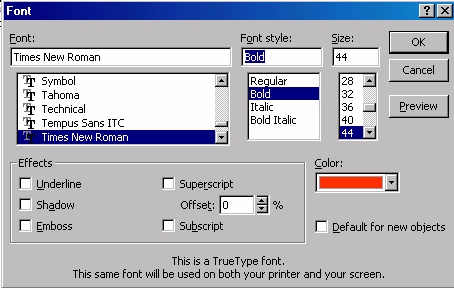
| Font and colour of text Select the text
you wish to change.
On Format on the menu bar
click Font to change the font, font size, font style and colour. It will
change just the text selected.
|
|
|
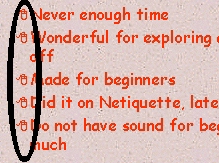
| Bullets To change the bullets
select the required text,
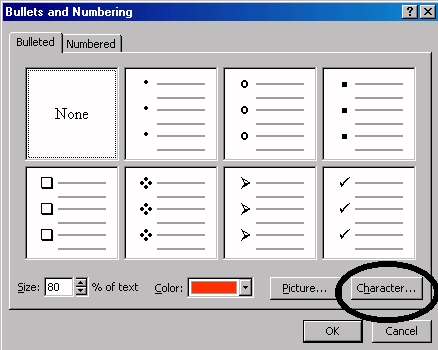
Click on the Format menu
Click on Bullets and Numbering.
Click on the Character button. |
|
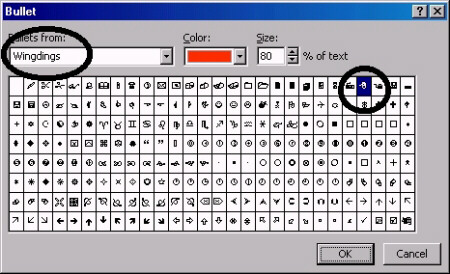
 Select
a Wingding or Webding character (circled below) to enhance
the meaning of the content of the presentation.
|
|
|
Colours and Lines
To alter the colour and fills of objects:
Select the object you wish to change.
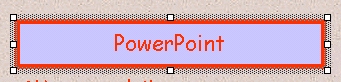
Click on Format menu.
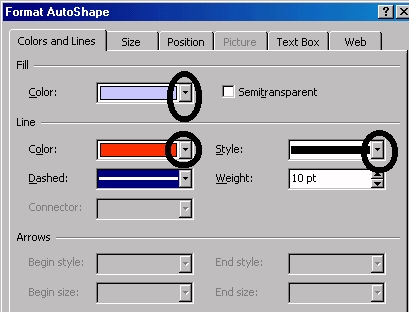
Click on Colors and Lines.
Click on the little arrows as indicated and alter as
required.
|
|
| Creating your own
template To change the colours and fonts
on all the slides:
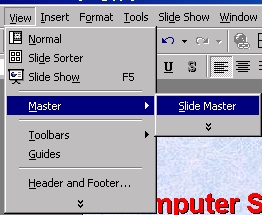
Click on View
Click on Master
Click on Slide Master
Alterations made will change all slides in the
presentation.
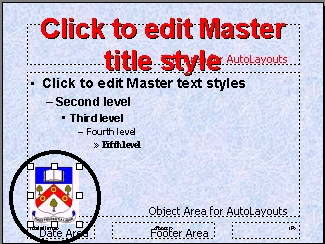
To insert a school badge or graphic on all slides, insert and position it on
the Master slide. |
|
|