
PowerPoint - Adding animations and videos
This is not a course. It is a ...
Tip Sheet
- Animation in PowerPoint means to add a special visual or sound effect to text or an object. For example, you can have your text bullet points fly in from the left, one word at a time, or hear the sound of applause when a picture is uncovered. You can animate any number of objects on a slide, and you can even animate elements of a chart.
- Videos (movies) can be added to PowerPoint presentations.
- An animated GIF is a file that contains a series of GIF images that are displayed in rapid sequence to produce an animated effect.
To animate text and objects
Click on View, then
Click on Normal
and display the slide that has the text or objects you want to animate.
On the Slide Show menu bar
Click Custom Animation, and then
Click the Effects tab.
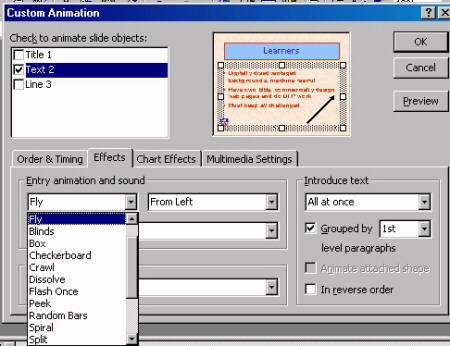
Under Check to animate slide objects, select the check box next to the text or object you want to animate.
In the illustrated example the text will be animated, and will Fly in From left.
Repeat for every object you want to animate.
To change the order of animation:
Click the Order & Timing tab.
Under Animation order select the object you want to change, and then click one of the arrows to move the object up or down in the list.
To view the animation:
Click Slide Show, then
Click on View Show
To insert a video (movie) to a slide
Display the slide you want to add the video to.
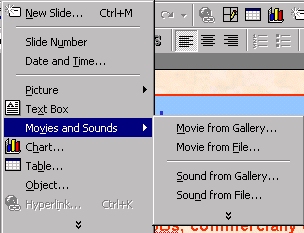
Click on the Insert menu
Click on Movies and Sounds.
Do one of the following:
- To insert a video from the Clip Gallery, click Movie from Gallery, and then locate and insert the video you want.
- To insert a video from another location, click Movie from File, locate the folder that contains the video, and then double-click the video you want.
Position the video clip on the slide. To view click Slide Show, then View Show.
To insert an animated GIF picture on a slide
Display the slide you want to add the animated GIF picture to.
Do one of the following:
- To insert an animated GIF picture from the Clip Gallery, click Insert Clip Art on the Drawing toolbar and then click the Motion Clips tab.
- To insert an animated GIF picture from a file, on the Insert menu, point to Picture, and then click From File. To view the animated GIF picture, click Slide Show, then View Show