PowerPoint - Adding transitions
This is not a course. It is a ...
Tip Sheet
Movement can be added to a PowerPoint presentation with transitions to add a special effect to introduce a slide. For example, you can fade in from black or dissolve from one slide to another. You can choose the transitions you want, and you can vary the speed of each. Do not add a transition to the first slide as it should be visible before the presentation begins, to focus the audience on the forthcoming presentation.
To insert a transition to a slide
On the menu bar click View, then
Click on Slide Sorter. 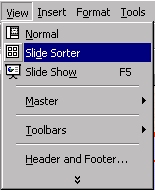
Select the slide or slides you want to add a transition to. To select more than one slide, press the Ctrl button on the keyboard while clicking on the slides with the mouse.
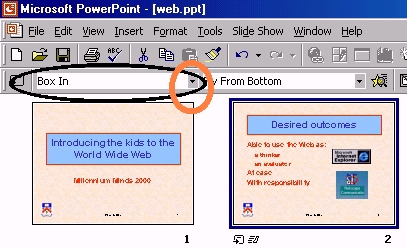
In the illustrated example the transition is between Slide 1 and Slide 2 in the
Slide Sorter View. On the small down arrow  ,
open the box to select the transition you want. Repeat the process for each
slide you want to add a transition to.
,
open the box to select the transition you want. Repeat the process for each
slide you want to add a transition to.
Or
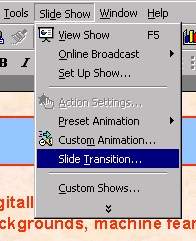
In the menu bar
Click on Slide Show, then
Click on Slide Transition.
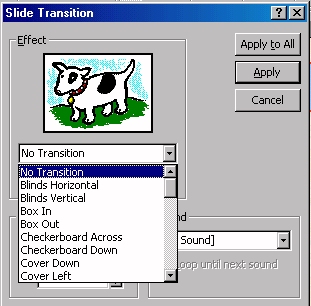
In the Effect box, click the transition you want, and then select any other options you want. To apply the transition to the selected slide:
Click Apply.
To apply the transition to all the slides:
Click Apply to All.
To view the transitions:
Click Slide Show, then
Click on View Show