|
MS Word 2000 - Opening Files |
||
| .......... | This is not a course. It is a... Tip Sheet |
||
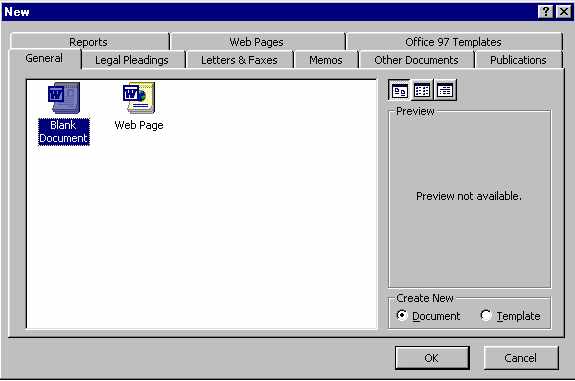
Open a new blank documentWord automatically starts with a new blank page. However, you can work with more than one document at a time. While you are working with an existing document you can open a second document (and third and fourth etc) by doing the following:
|
|||
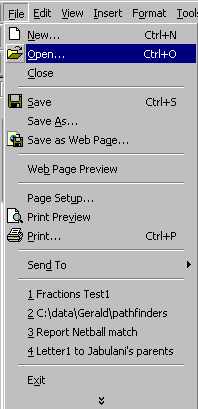
Open an existing / saved fileWhen you save a document to a disk we refer to the saved document as a file. All files that you save should have different names, describing what is in that file. This will help you to find the right document again when you want to open it.
|
|||
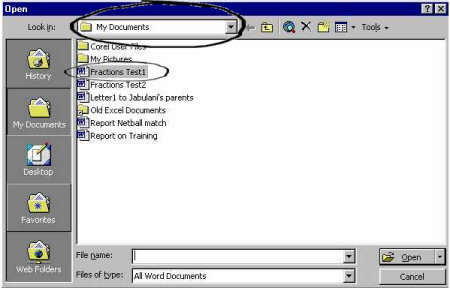
This pop-up screen (above) will give you all the information you need to be able to find the file you want to open. The first place to look is in the Look in: line at the top of the screen (circled for you here). The name of the storage folder should appear there. For instance, if you saved the file in a folder called My Documents you are in the right place. Now you have to look below the Look in: line to see the names of the various sub-folders and files that are in the My Documents folder. In this example we are hoping to open the file called Fractions Test1. To open the file, click on the file name. It
will look like this once you have clicked on it: |
|||
| . | |||