|
MS Word - Saving documents |
|||||
| .......... | This is not a course. It is a.. Tip Sheet |
|||||
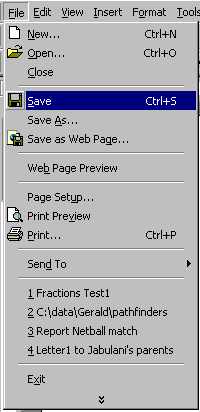
Saving a FileYou should save a file after working with it for just a few minutes. Then you should keep saving the updated version of the document as you work (every 5 minutes or so).
|
||||||
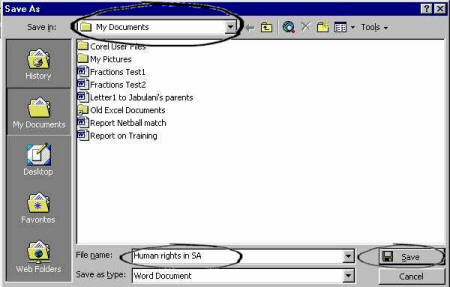
The Save file pop-up screen:
The first thing to do is to ensure that you are saving the file in the correct folder. Look at what is written in the Save in: line at the top of the pop-up screen. Type your chosen file name in the File name: box at the bottom of the screen. Then click on the Save button. You use Save the first time you
save a file. You have to name the file when you first save it. It is recommended that you
keep saving the file every few minutes. You do not have to name it every time since you
have already given it a name. You can save an existing file by merely clicking on the Save
File Icon |
||||||
| . | ||||||
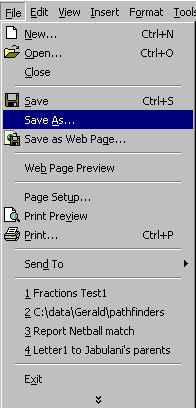
Save AsYou use the Save As command when you want to:
|
||||||
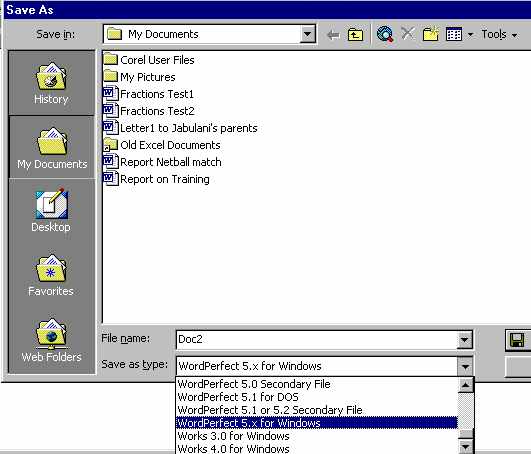
If you want to change the File Type (for instance, you want to save a Word file as a WordPerfect file because your friend uses WordPerfect as a word processor) you use File Save As and when you see the pop-up screen you have to change the file type at the bottom left of the screen.
Click on the black triangle to display the choices and select the type you want to save as (in this case it is WordPerfect 5.x for Windows). |
||||||
|

 in the toolbar.