WebWhacker - To download a web page, directory or site
This is not a course. It is a ...
Tip Sheet

From the Start
button load WebWhacker or select the
icon from the desktop.
Click on Grab.
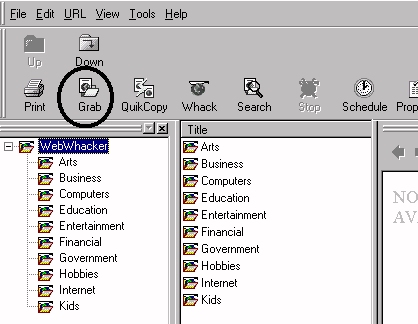
A pop-up screen opens to guide you through the process.
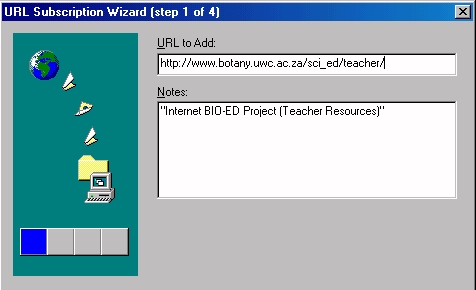
In the space for URL, type the address of the site you wish to whack or download. In the Notes box add notes for yourself to remind yourself of the contents of the site. Click Next.
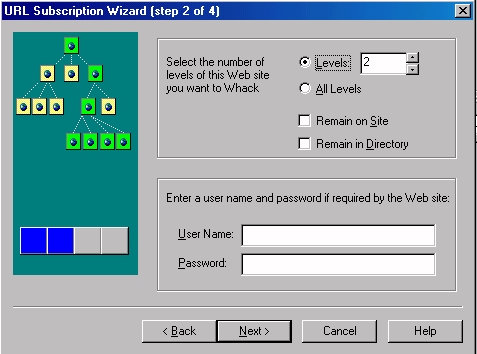
Web sites have a number of levels. WebWhacker allows you to decide on the depth of the site to whack. In this case it was decided to go Level 2. In other words, you will download the files on that site, plus the files that are linked to (1st level), plus any files that are linked to in those linked files (2nd level). For a simpler download, select Remain in Directory.
Click Next.
Web sites can have a number of files embedded such as text, graphics, sound and video clips. The user has the opportunity not to receive files with certain extensions, for example, zip (zipped files), exe files (complete programmes), doc files (Word files), etc. (You cannot download or whack asp files although they look like htm or html files.) The extensions need to be typed in the block indicated. Click Next.
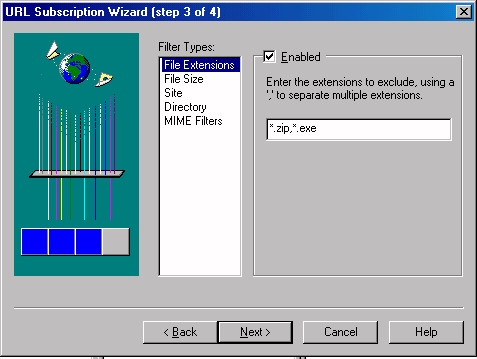
The user has the opportunity to whack or download the files at a specified time, in this case it was immediately after completing the dialogue box. Click Finish.
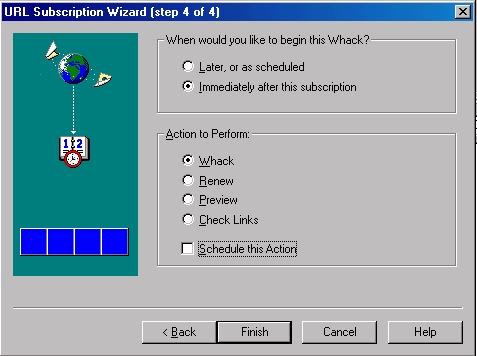
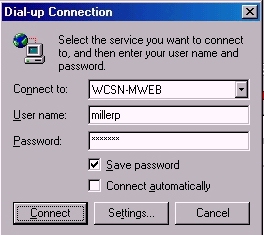
WebWhacker initiates the process of connecting to the Internet.
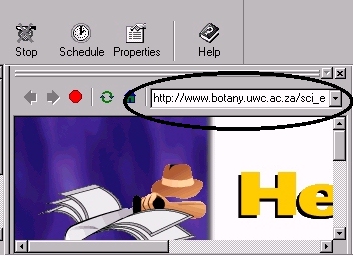
Note the name of the site to be whacked is in the box. The URL indicates what is being whacked or downloaded.
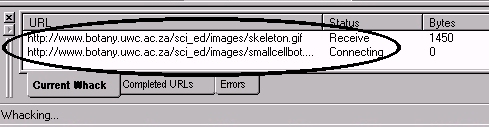
See the files being downloaded from the site. In this case one can see two files one of which is a picture of a skeleton.
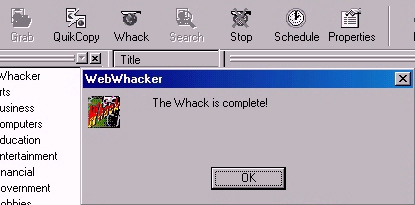
When the site has been completely whacked or downloaded the user is informed.