|
Word 97 - Saving files as Read-Only |
This is not a course. It is a ... Tip Sheet |
|
|
Microsoft Word provides several ways to make sure that a document or file cannot be altered. This function is useful if you want to make sure no one changes your original document.
One way to protect your file is to make the document Read-only.
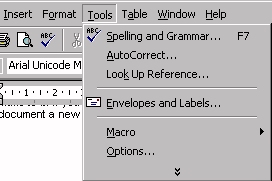
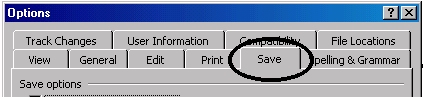
Click Options. Click Save.
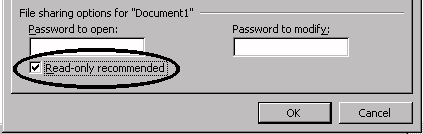
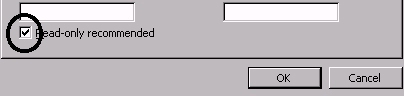
Click Read-only recommended.
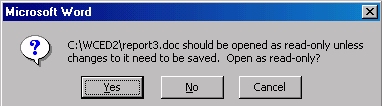
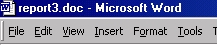
To remove the Read-Only feature If a document has been made Read-Only, when you open it a message appears indicating that it is Read-Only.
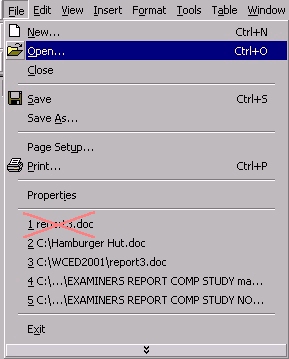
In the illustration the author did not want anybody changing the file Report3. To remove that the protection: Click on File in the menu bar click on Open Do not select the file from the list of recently opened files (see cross below))
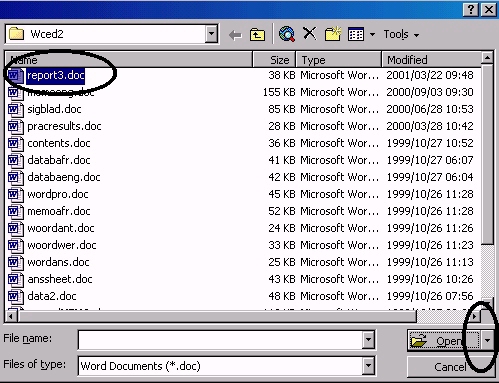
Select the file to Open (see below). Notice that when the file is selected the Open button has a little arrow pointing down (circled below).
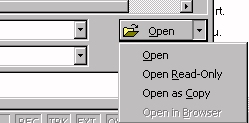
Click on the little arrow. You will notice that the file can be Opened, left as Read-Only or Opened as a Copy.
Open the file as Open. Then click on Tools, Options and remove the selection.
Now you can read and save changes to the file.
|
|