|
Bold Italics Underline
You will find the icons for these functions in
the formatting toolbar.
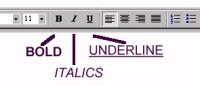
You can change the appearance of (edit) text to bold, italic
or underline before or after you type the text.
Before you type the text:
Click on B - and then type the text that you
want to be Bold. Click on B again to end the bold text
and type normally.
Click on I - and then type the text that you want to be Italics.
Click on I again to end the italic text and type normally.
Click on U - and then type the text that you want to be Underlined.
Click on U again to end the underlined text and type normally.
| After you type the text: Highlight the text you want to change. Then click on the relevant icon
in the toolbar to make the change.
You can follow this procedure for any editing of text. For
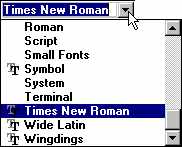
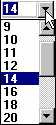
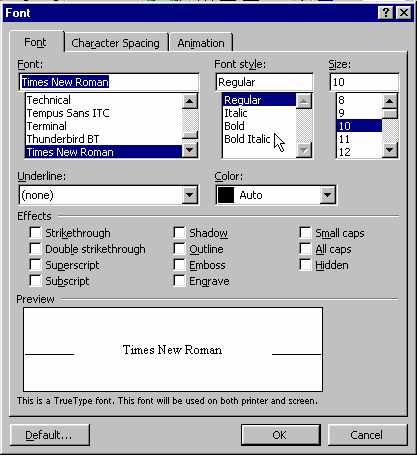
example you can use this technique to change the colour, size or font of the text, as well
as many other editing features.
You
can highlight text in a number of ways (you can choose the easiest
for you):
- click twice on a word to highlight the word
- click three times on a word in a paragraph to highlight the
whole paragraph
- click to the left of a line of text to highlight the lone of
text
- click and drag the mouse pointer over text you want to select
- click once, then use Shift-arrow keys to select text
|
|
|